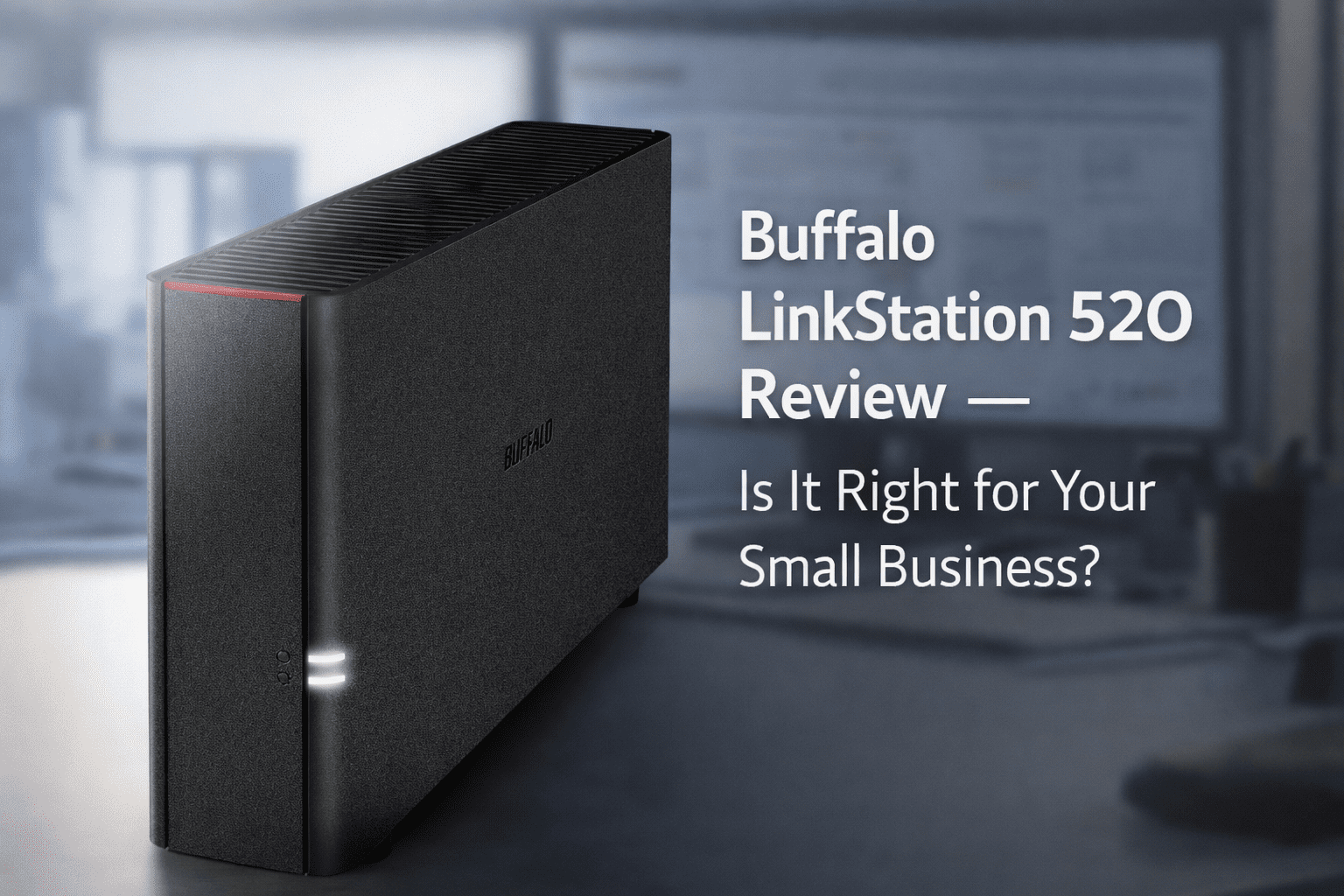
Buffalo LinkStation 520 Review: Is It Right for Your Small Business?
Disclosure: This article contains affiliate links. If you purchase through them, we receive a commission at no extra cost to you.
Every small business reaches the same point: files scattered across three laptops, nobody can find the invoice from last March, and someone accidentally overwrote the wrong version of a document. A NAS — Network Attached Storage, a small box that acts as a shared hard drive for everyone on your network — is the fix. This Buffalo LinkStation 520 review tells you exactly what you’re getting before you spend the money.
Bottom line up front: it’s a solid, no-fuss storage device for small teams. It is not a powerhouse.
Quick verdict
Buffalo LinkStation 520 at a glance
What is RAID 1?
RAID 1 means both drives in the box contain identical copies of your data at all times. If one drive dies — and eventually, all drives die — you don’t lose anything. The LinkStation alerts you by email and you replace the failed drive. RAID 1 won’t save you if your office floods. But a single drive dying in the night — the most common way businesses lose data — won’t cost you a thing.
What it does well
- ✓Ships with hard drives already installed
- ✓Set up in under 15 minutes
- ✓No monthly fees, ever
- ✓Automatic drive mirroring (RAID 1) protects your data
- ✓Works with PC, Mac, phones and tablets
- ✓Remote access via free WebAccess app
Where it falls short
- ✗Slow with many small files simultaneously
- ✗Not expandable beyond 2 drives
- ✗Remote access setup takes patience
- ✗Not suited for 10+ simultaneous users
- ✗Power button is on the back — awkward placement
The 4TB warning
The Amazon listing says 4TB. You will not have 4TB.
You’ll have 2TB — because the second drive is a mirror of the first, not extra space. Buffalo isn’t hiding this, but they’re not advertising it either. Know before you buy. If you need more room, buy the 8TB listing — you’ll get 4TB usable.
The Buffalo LinkStation 520 ships with two hard drives pre-installed and pre-configured in RAID 1. If one drive fails, the other has a complete copy of everything. That tradeoff — half the advertised storage in exchange for automatic redundancy — is worth it for a business.
This is not a cloud backup
The LinkStation sits in your office. If your office floods, burns, or gets robbed, the NAS goes with it. RAID 1 is not a backup strategy — it’s protection against one specific type of failure. Treat it that way. For a complete strategy, pair this with Backblaze ($99/year), which automatically backs up the NAS offsite. The LinkStation supports this natively.
Setup
How to set up the Buffalo LinkStation 520 — step by step
Total setup time
Plugged in and accessible to your first computer in 15 minutes. All employees set up and mapped on their machines in under an hour.
Performance
How fast is it — and does it matter for your business?
The LinkStation 520 moves large files — PDFs, spreadsheets, photos, invoices — at around 90–110 MB/s over a standard wired network connection (if your router is less than 5 years old, you have this). That’s fast enough to open a 100MB file in about one second. For a salon, restaurant, retail shop, or small office sharing documents between 2–5 people, more than fast enough.
Where it slows down: if multiple employees are all saving small files simultaneously — a busy office where 8 people are working in the same folder at once — write speeds drop to around 23–30 MB/s. For 2–5 users doing normal business work, this won’t be noticeable. For 10+ users doing heavy concurrent work, it will.
Remote access
Accessing your files from outside the office
Buffalo’s free WebAccess app lets you reach your files from your phone anywhere. It works — but getting there requires one extra step: opening a port on your router. Opening a port on your router is the kind of step that takes 20 minutes if you know what you’re doing and an hour of Googling if you don’t. If you only need files inside your office, skip this step entirely. If you do want remote access, here’s how:
How to set up remote access
- Create a free Buffalo account at buffalonas.com
- In the LinkStation admin panel, go to Services → WebAccess → Enable
- Log into your router at
192.168.1.1(or192.168.0.1if the first doesn’t work) - Find “Port Forwarding” → add a new rule → set port 9000 to forward to your LinkStation’s IP address (visible in the admin panel under Network → LAN)
- Download the free WebAccess app on your phone and log in with your Buffalo account
Gmail users — one extra step
If you use Gmail for email notifications, Buffalo’s SMTP setup requires a Google App Password — not your regular Gmail password. Google blocks direct SMTP login. Go to myaccount.google.com → Security → App Passwords → generate one for “Mail” and use that in the LinkStation’s Notifications field. Using your regular Gmail password here will fail silently.
Should you buy it?
Who the Buffalo LinkStation 520 is right for
- ✓You have 2–6 employees sharing files
- ✓You want to stop paying for Google Drive or Dropbox
- ✓You want automatic backup without a monthly fee
- ✓You want something that works out of the box
- ✓You run a salon, restaurant, retail shop, or small office
- ✗You have 10+ employees all working simultaneously
- ✗You need more than 4TB of usable storage
- ✗You want to use it as a security camera recorder, host a website, or run accounting software directly on the device — the LinkStation can’t do any of that
- ✗You want to expand storage easily in the future
After setup
Five things to do right after you plug it in
Where to buy
Buffalo LinkStation 520 — available on Amazon
Available in 2TB, 4TB, and 8TB configurations. The 4TB (2TB usable in RAID 1) is the sweet spot for most small businesses with 2–6 employees. Hard drives included — nothing extra to buy to get started.
View the Buffalo LinkStation 520 on Amazon →The Buffalo LinkStation 520 is a solid NAS for small business use — not the fastest, not expandable, but genuinely easy to set up and reliable for what most small teams actually need. Plug it in on a Monday morning and your team can be using it by lunch.
Once your files are backed up locally, make sure your digital accounts have the same protection. Here’s how to set up two-step verification on your Microsoft account — the single most effective step to protect your business email and files from unauthorized access.
And if you’re also thinking about physical security, here’s how to set up outdoor security cameras for your small business without hiring an IT team.