The Best VPN Alternative for Small Business in 2026
Disclosure: This article contains affiliate links. If you purchase through them, we receive a commission at no extra cost to you.
Table of Contents
Most small businesses and home office users rely on one of two things to secure remote access to their network: a traditional VPN that slows everything down, or nothing at all. This Twingate review covers a third option — a VPN alternative most small businesses don’t know exists, one that’s faster, simpler, and more secure than what most people are running today.
Here’s what it actually does, why it matters for your home network or small business, and what it costs.
The basics
What is Twingate?
Twingate is a Zero Trust Network Access tool — in practice, that means it controls exactly who can reach what on your network, from wherever they are, without the exposure that comes with a traditional VPN.
In plain terms: Twingate lets you securely access your home or office network from anywhere — your files, your NAS drive, your security cameras, your internal tools — without opening your router to the internet, without port forwarding (opening specific doors in your router’s firewall that also create visible targets for attackers), and without the speed penalty that comes with most VPNs. You barely notice it’s running.
Zero Trust — what it actually means
A traditional VPN works like a key to the front door — once you’re in, you can access most things on the network. Zero Trust works differently: it verifies every single connection separately, every time, based on who you are, what device you’re on, and what you’re trying to access. Someone with your VPN password gets into the whole network. Someone with Twingate access only gets into what you’ve specifically allowed them to access.
Twingate runs on macOS, Windows, Linux, iOS, Android, and ChromeOS. It works alongside your existing router — you don’t replace anything. You install a lightweight connector on your home or office network and a small app on each device that needs access. That’s it.
The comparison
VPN vs. Twingate — what’s actually different
| Traditional VPN | Twingate | |
|---|---|---|
| Speed | Routes all traffic through a central server — slows everything down | Direct peer-to-peer connections — up to 86% faster than VPN |
| Setup | Port forwarding, firewall rules, certificates required | Install connector, install app — done in minutes, no open ports |
| Security model | One password gets you into the whole network | Access controlled per user, per device, per resource |
| Attack surface | Open port on your router visible to the internet | No open ports — connector makes outbound connections only |
| Video calls | Frequently laggy and unstable on VPN | Split tunneling* routes calls directly — no lag |
| Free tier | Most VPNs require paid plans for remote access | Free for up to 5 users — fully functional |
*Split tunneling — only traffic going to your private network runs through Twingate; everything else — your browser, streaming apps, video calls — goes directly to the internet at full speed.
The biggest practical difference: a traditional VPN tunnels all your internet traffic through a central server, which slows everything down. Twingate uses split tunneling by default — you access your private resources securely while everything else runs at normal speed. The result is a connection your employees don’t complain about.
For home users
How Twingate benefits home users
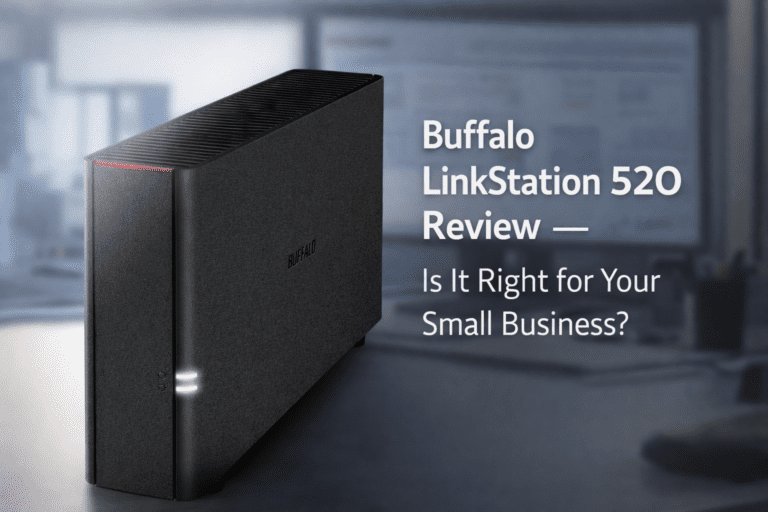
If you’ve ever wanted to access files on a home computer from your phone while traveling, check your home security cameras from a hotel, or connect to a NAS drive remotely without exposing it to the internet — Twingate is built for exactly this. If you have a Buffalo LinkStation or Synology NAS at home, our Buffalo LinkStation review covers how that device works — Twingate is the cleanest way to access it securely from anywhere.
Access your home network from anywhere
Connect to your home WiFi as if you’re sitting in your living room — from a coffee shop, an airport, or another country. Access any device on your home network: your NAS, your desktop, your media server, your security cameras.
No open ports in your router
Every open port on your router is a potential entry point for attackers. Traditional remote access requires opening ports. Twingate’s connector makes outbound connections only — nothing on your router is exposed to the internet. Your home network is invisible from the outside.
The Home plan is $15/month flat for up to 7 users
For a household where multiple family members need remote access, the Home plan at $15/month covers up to 7 users with device posture checks (Twingate verifies that connecting devices meet your security requirements before granting access), MFA for any resource, and exit network support. Not per user — $15 total. Limited to non-commercial use.
For small business
Twingate as a VPN alternative for small business — what it replaces and why
For a small business, the problem is straightforward: your bookkeeper works from home on Tuesdays, your manager checks the cameras from her phone, and your accountant needs the server files from across town. A VPN handles this — slowly, frustratingly, and with someone technical required to set it up and keep it running. Twingate replaces all of that.
Remote employees access only what they need
With a traditional VPN, a remote employee who connects gets access to your entire network. With Twingate, you define exactly which resources each person can reach — your bookkeeper can access the accounting software but nothing else, your manager can access the security cameras but not payroll. Access is controlled per person and per resource.
No open ports means a smaller attack surface
Most small business VPN setups require opening a port on your office router — and automated scanners probe every public IP address on the internet for open ports, around the clock. If yours is open, it gets found. I’ve seen small business routers in Miami running VPN versions with known exploits that had been public for over a year — the owner had no idea their network was visible. Twingate has no open ports. An attacker scanning your IP address sees nothing to attack.
Works on any device your employees already use
Twingate runs on Windows, Mac, iPhone, Android, and Linux. Your employees download the app, sign in with their existing Google or Microsoft account (SSO — Single Sign-On — so no separate Twingate password to remember), and they’re connected. Setup for a new employee takes about 5 minutes.
DNS filtering blocks threats automatically
On the Business plan, Twingate includes DNS filtering — a system that blocks malicious websites, phishing pages, and malware domains before they load. Employees don’t configure anything. They just can’t reach dangerous sites, whether they know it or not.
Free tier works for solo operators and tiny teams
The Starter plan is completely free for up to 5 users — no credit card required. The free plan doesn’t include device posture checks, MFA per resource, or Google Workspace SSO. For most solo operators and small teams just replacing a VPN, none of that matters. For a business handling sensitive client data, the Teams plan at $5/user is worth it.
Plans and pricing
Twingate pricing — what each plan costs
Starter — Free, up to 5 users
Fully functional free plan. Includes peer-to-peer connections, split tunneling, and conditional access controls across all major OS platforms. Best for solo operators, freelancers, or anyone who needs remote access without paying for it. No credit card required.
Home — $15/month flat, up to 7 users
All Business features for personal and home lab use. Adds device posture checks, MFA for any resource, and exit networks. $15/month covers the whole household — not per user. Non-commercial use only.
Teams — $5/user/month (billed annually), up to 100 users ← Best for most small businesses
Everything in Starter plus Google Workspace SSO, device posture checks, MFA for any resource, and automated least privilege policies — automatic rules that give each employee access only to what their role requires, nothing more. For a 5-person team: $25/month total. 14-day free trial included.
Business — $10/user/month (billed annually), up to 500 users
Adds Okta and Microsoft Entra ID integrations, DNS filtering, endpoint detection integrations, and secure service accounts. For a 10-person business: $100/month. 14-day free trial included.
Getting started
How to get started with Twingate
For most small businesses looking for a VPN alternative, the free plan handles everything — and the Teams plan at $25/month for five users costs less than most VPN subscriptions, with significantly better security and no slowdowns. Visit twingate.com to create a free account and have it running in about 20 minutes.
Once your remote access is secured, the next step is locking down the accounts your business runs on. Here’s how to set up two-step verification on your Microsoft account — the fastest way to protect Outlook, OneDrive, and everything connected to your Microsoft 365 subscription.