Linux vs Windows for Small Business: Which OS Makes Sense for You?
Linux vs Windows for Small Business: Which OS Actually Makes Sense for You?
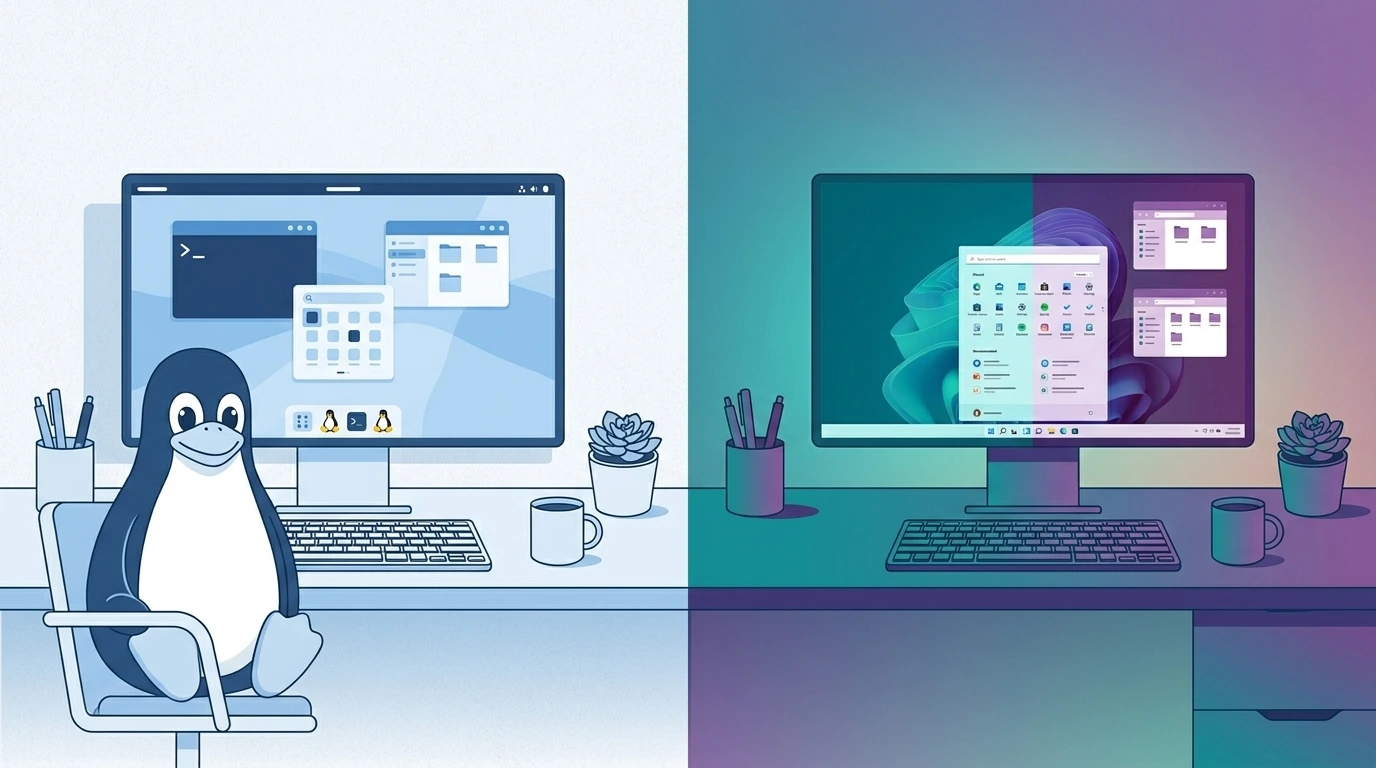
If you’re running a small business and wondering whether Linux vs Windows is the right choice for your computers, here’s the short answer: most small businesses should stick with Windows — but there are specific situations where Linux saves you real money and headaches. The choice comes down to what software you run, who manages your computers, and how much you want to pay.
I’ve set up networks and workstations at restaurants, salons, retail stores, and small offices across Miami for over ten years. I’ve seen both systems work well, and both fail badly — usually because someone made the choice without understanding the trade-offs. This article gives you a straight comparison so you can decide without guessing.
What Linux and Windows Actually Are (No Jargon)
Windows is the operating system (OS) — the software that runs your computer — made by Microsoft. It’s what most people see when they turn on a PC. You probably already know it.
Linux is a free, open-source OS. “Open-source” means thousands of developers worldwide build and maintain it together, and nobody owns it. It runs on the same hardware as Windows but looks and works differently. The most business-friendly version is Ubuntu, which is free to download and use on as many computers as you want.
Made by Microsoft. Familiar to most employees. Runs almost every business app. Costs money per license. Requires antivirus. Needs regular updates that sometimes break things.
Free and open-source. Runs fast on older hardware. Very secure by design. Not compatible with all Windows software. Requires more technical setup upfront.
Windows 11 Pro runs $139–$200 per device. If you have five computers, that’s $700–$1,000 just in OS licenses, before you buy any other software.
Linux is a harder target for malware by design. Windows is targeted more often — not because it’s worse code, but because it’s everywhere. You need solid antivirus on Windows.
Linux vs Windows for Small Business: The Real Cost Comparison
The price difference is bigger than most people realize once you account for everything — not just the OS license.
- ✅ Free OS, forever
- ✅ Free office apps (LibreOffice)
- ✅ Built-in security tools
- ⚠️ May need IT help for setup
- ❌ Won’t run QuickBooks Desktop
- ✅ Runs all business software
- ✅ Familiar to most employees
- ✅ Easy IT support available
- ⚠️ Needs antivirus ($30–$80/yr)
- ⚠️ Microsoft 365 extra ($6–$22/user/mo)
For a 5-computer office on Windows, you’re looking at roughly $700 in licenses, plus antivirus, plus Microsoft 365 if you need Outlook and the full Office suite. On Linux, the base cost is zero — but if your team needs software that only runs on Windows, you’ll spend more time and money working around that gap than you saved.
Head-to-Head: What Matters for Day-to-Day Business Use
| Category | Linux (Ubuntu) | Windows 11 | Winner |
|---|---|---|---|
| License cost | Free | $139–$200/device | Linux |
| Software compatibility | Limited — no QuickBooks Desktop, no Adobe apps | Runs virtually everything | Windows |
| Security / malware risk | Low malware target, strong by default | Higher target, needs antivirus | Linux |
| Employee learning curve | Takes adjustment (1–2 weeks) | Familiar to most workers | Windows |
| Old hardware performance | Runs well on 8-year-old machines | Struggles on older hardware | Linux |
| IT support availability | Harder to find local help | Any IT shop can support it | Windows |
| Microsoft 365 / Office | Web versions work; desktop apps do not | Full desktop apps supported | Windows |
| Long-term update stability | LTS versions supported 5 years, no forced upgrades | Forced updates, periodic major upgrades | Linux |
| POS system support | Most POS software requires Windows | Universal POS compatibility | Windows |
When Linux for Small Business Actually Makes Sense
Linux is not the right answer for most small businesses — but it’s the right answer for some specific situations.
✅ Go Linux if…
- You work mainly in a browser (Google Workspace, web-based POS)
- You have old computers you don’t want to replace
- You need a dedicated machine for one task (kiosk, display, file server)
- You want to cut costs and have some IT support
- Your only office suite need is LibreOffice-compatible documents
❌ Stick with Windows if…
- You run QuickBooks Desktop, Sage, or other Windows-only accounting software
- You use any POS system that requires Windows
- Your employees are not tech-savvy
- You have no in-house IT and rely on walk-in computer repair shops
- You use Adobe Creative Cloud (Photoshop, Illustrator, etc.)
One case where I always recommend Linux: dedicated back-office machines that only run a browser. A salon that uses a cloud-based scheduling app on a front-desk computer doesn’t need a $139 Windows license on that machine. Install Ubuntu, open Chrome, done. That’s a $139 saving per workstation with zero sacrifice in function.
How to Test Linux on Your Business Computer Without Installing Anything
Before committing, you can run Linux directly from a USB drive to see how it feels on your hardware. No installation, no risk — if you don’t like it, just remove the drive and reboot into Windows.
🖥️ How to Try Ubuntu Without Installing It
- 1 Go to ubuntu.com/download/desktop on any computer and download the Ubuntu ISO file (it’s free, about 5 GB).
- 2 Download Rufus (free at rufus.ie). This tool writes the Ubuntu file onto a USB drive so you can boot from it.
- 3 Plug in a USB drive (8 GB or larger). Open Rufus, select the Ubuntu ISO file, select your USB drive, click Start. Takes about 5 minutes.
- 4 Restart the computer you want to test. As it starts up, press the boot menu key — usually F12 on Dell, F9 on HP, Option on Mac. Select the USB drive from the menu.
- 5 Ubuntu loads. Choose “Try Ubuntu” (not “Install”). You’re now running Linux without touching your hard drive. Open Chrome, try your web apps, see if everything you need works.
- 6 When done, shut down and remove the USB drive. Your computer restarts into Windows exactly as before.
While you’re testing Ubuntu from USB, open your most-used web apps — your booking system, Google Workspace, bank portal, ordering platform. If everything loads and works normally, that machine is a strong candidate for Linux. The USB test takes 10 minutes and tells you more than any comparison article.
Security: Why Linux Requires Less Babysitting
On Windows, antivirus software is not optional for a business. Ransomware — malicious software that locks your files and demands payment to unlock them — targets Windows almost exclusively because of its market share. Products like Malwarebytes or Norton 360 add a real layer of protection, but they’re an ongoing cost and they slow machines down slightly.
Linux has a fundamentally different security model. Standard users can’t accidentally install system-level software without entering an admin password — which stops most malware cold. That doesn’t mean Linux is invincible, but in 10 years of managing small business networks, I’ve never had to clean ransomware off a Linux machine. I’ve cleaned it off dozens of Windows machines.
Run Malwarebytes alongside Windows Defender — not instead of it. Malwarebytes catches behavioral threats that signature-based antivirus misses. The Premium plan runs about $40/year per device. For a 3-computer office, that’s $120/year that Linux users don’t pay.
The Bottom Line on Linux vs Windows for Small Business
For most small businesses, Windows is still the right default — not because it’s better software, but because the ecosystem around it (software compatibility, IT support, employee familiarity) is built around Windows. Switching to Linux to save money only works if the software your business depends on runs on Linux or in a browser.
The cases where Linux genuinely wins: single-purpose kiosk computers, front-desk machines that only run web apps, and businesses that want to get more life out of aging hardware. In those situations, the $0 license cost and lower malware exposure make Linux the smarter call.
If you’re on Windows and staying there, make sure your endpoint protection is solid. Malwarebytes Premium paired with Windows Defender is what I deploy on most client machines. It’s not glamorous, but it works.