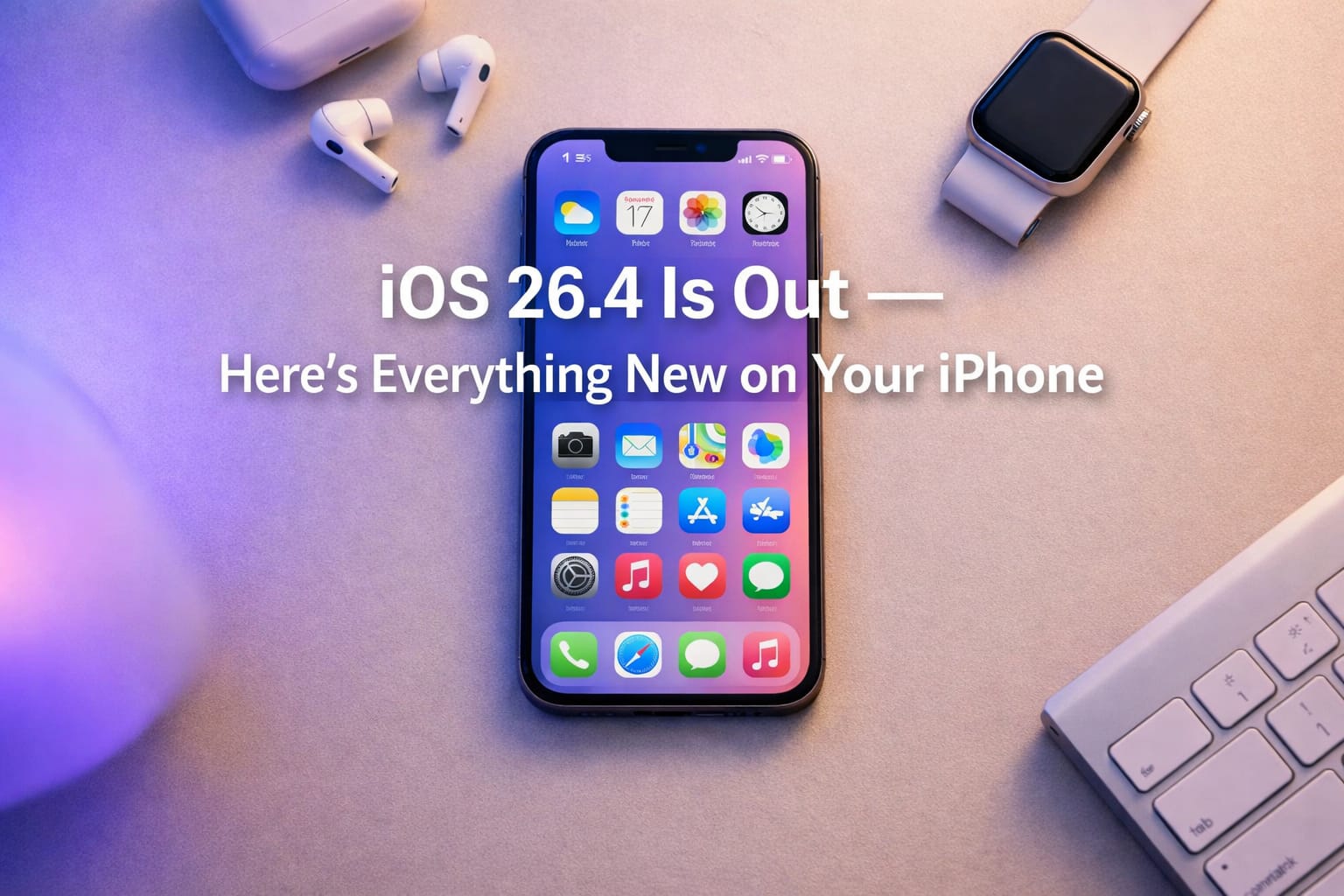
iOS 26.4 Update: Every New Feature on Your iPhone (March 2026)
Apple released iOS 26.4 today, March 24, 2026. It’s the biggest feature update since iOS 26 launched in September — covering Apple Music, Podcasts, CarPlay, Reminders, new emoji, accessibility improvements, and a handful of useful fixes that have been annoying users for months. The major Siri overhaul everyone was waiting for is still not here, but there’s plenty else worth knowing about.
Here’s every iOS 26.4 new feature, what it does, and how to find it on your iPhone.
How to update now
Settings → General → Software Update → tap “Update Now.” Your iPhone needs to be on at least 50% battery, or plugged in. The update requires an iPhone with an Apple A13 Bionic chip or newer — that means iPhone 11 and later.
Apple Music
Five new Apple Music features
Playlist Playground (beta)
Describe a mood, occasion, or feeling and Apple Music generates a full playlist for you — complete with a title, description, and tracklist. Type something like “Sunday morning cooking breakfast” and it builds the set. Currently in beta, so it may not be perfect yet. Find it in Apple Music → New Playlist → Playlist Playground.
Concerts
Apple Music now surfaces upcoming shows from artists in your library and recommends new artists playing nearby. It knows what you listen to and tells you when those artists are performing close to you. Find it in Apple Music → Listen Now → Concerts Near You.
Offline Music Recognition
The song recognition tool in Control Center — the Shazam button — now works without an internet connection. It identifies the song offline and delivers the result automatically once you’re back online. Useful anywhere you lose signal but still hear something you want to remember.
Ambient Music Home Screen Widget
A new widget for your Home Screen that gives one-tap access to curated ambient playlists organized by mood — Sleep, Chill, Productivity, and Wellbeing. Long-press your Home Screen → tap the + button → search for Music → add the Ambient Music widget.
Full-Screen Album and Playlist Backgrounds
Album and playlist pages now display full-screen artwork as a background, making browsing your library feel more visual and less like a text list. It happens automatically — no setting to change.
Apple Podcasts
Upgraded video podcast experience
Apple Podcasts has supported video podcasts for years but the experience was clunky. iOS 26.4 overhauls it completely. You can now switch seamlessly between watching and listening to a video podcast — start watching, lock your screen and it keeps playing audio, or tap to go back to video when you pick up your phone. The discovery experience for video podcasts has also been redesigned to make it easier to find new shows.
Find video podcasts: Apple Podcasts → Browse → Video Podcasts.
CarPlay
AI chatbot apps and video playback in CarPlay
CarPlay now supports AI chatbot apps — meaning you can use voice assistants like ChatGPT or Claude directly through your car’s screen while driving. It also gains support for video playback for compatible apps, bringing streaming content to your car display when parked. Both features require a car with a CarPlay-compatible display and the relevant apps installed on your iPhone.
Reminders
Urgent reminders get a dedicated list
iOS 26 introduced Urgent reminders — tasks that fire an alarm when due, persist on your Lock Screen with a Live Activity banner, and let you snooze. In iOS 26.4, all your Urgent reminders now appear in a dedicated “Urgent” smart list at the top of the Reminders app, so your most time-sensitive tasks are always visible in one place without hunting through other lists.
To mark a reminder as Urgent: open the reminder → tap the info icon (ⓘ) → Priority → Urgent.
New emoji
8 new emoji
iOS 26.4 adds eight new emoji to the keyboard: a distorted face, a nuclear explosion, a ballet dancer, Bigfoot (Sasquatch), an orca, a landslide, a trombone, and a treasure chest — plus skin tone variations for the People Wrestling and People With Bunny Ears emoji. Apple typically holds new emoji for the .4 update each year, using them as an incentive to get users to install a fully stable version after several months of bug fixes.

They appear in the emoji keyboard automatically after updating — no extra steps needed.
Family Sharing
Adults can now use their own payment method for purchases
Previously, all purchases made within a Family Sharing group went through the family organizer’s payment method. In iOS 26.4, adult members can use their own payment methods for App Store purchases, subscriptions, and in-app purchases — without touching the organizer’s account. Useful for families where multiple adults share a group but want financial independence for their own purchases.
To set your own payment method: Settings → your name → Payment & Shipping → add your card.
Performance and fixes
Keyboard, battery, and performance improvements
Keyboard accuracy fix
A bug that caused the keyboard to lag, misfire, or produce wrong characters has been fixed. Swipe-to-type is more reliable, and predictive text is more accurate. This was one of the most-reported bugs in iOS 26.
Extended battery life
Apple has improved background energy management, resulting in longer usage times between charges. System storage usage has also been slightly reduced, freeing up space without any action on your part.
Smoother performance on older devices
Animations are smoother and devices generate less heat during intensive tasks — particularly relevant on iPhone 11, 12, and 13 models that found iOS 26 initially demanding.
CarPlay connectivity fix
Issues affecting CarPlay compatibility with certain car models have been resolved.
Stolen Device Detection now on by default
Apple’s Stolen Device Detection — which limits what someone can do with your iPhone in an unfamiliar location — is now enabled automatically on all compatible devices. Previously it had to be turned on manually. Verify yours: Settings → Privacy & Security → Stolen Device Protection.
Accessibility
Three accessibility improvements
Reduce Bright Effects
A new setting that minimizes bright flashes when tapping buttons or interacting with elements on screen. Useful for users sensitive to strong visual feedback. Settings → Accessibility → Motion → Reduce Bright Effects.
Easier subtitle and caption settings
Caption settings are now accessible directly from the captions icon while watching any video — tap the captions icon (CC) during playback to adjust text size, font, and background style without leaving the video.
Improved Reduce Motion for Liquid Glass
The Reduce Motion setting now more reliably reduces Liquid Glass animations throughout the interface — previously it was inconsistent. Settings → Accessibility → Motion → Reduce Motion.
Still not here: the new Siri
The major Siri overhaul that was widely expected to arrive in iOS 26.4 is not in this update. Apple has confirmed it’s coming in 2026, but hasn’t set a specific release window. The most likely scenario is that Apple announces it at WWDC 2026 in June alongside iOS 27 — which would push a public release to September 2026 at the earliest. End-to-end encrypted RCS messaging was also tested in beta but is not shipping in the public release — Apple says that’s coming in a future update.
iOS 26.4 is worth installing — particularly if the keyboard bug has been affecting you, if you use Apple Music heavily, or if you’ve been waiting for video podcasts to work properly in the Podcasts app. It’s a quality-of-life update more than a headline feature release, but a meaningful one. Go to Settings → General → Software Update to install it now.
While you’re updating, it’s a good time to make sure your iPhone accounts are properly secured. Here’s how to set up two-step verification on your Microsoft account — one of the most important security steps for any iPhone user who uses Outlook or OneDrive.