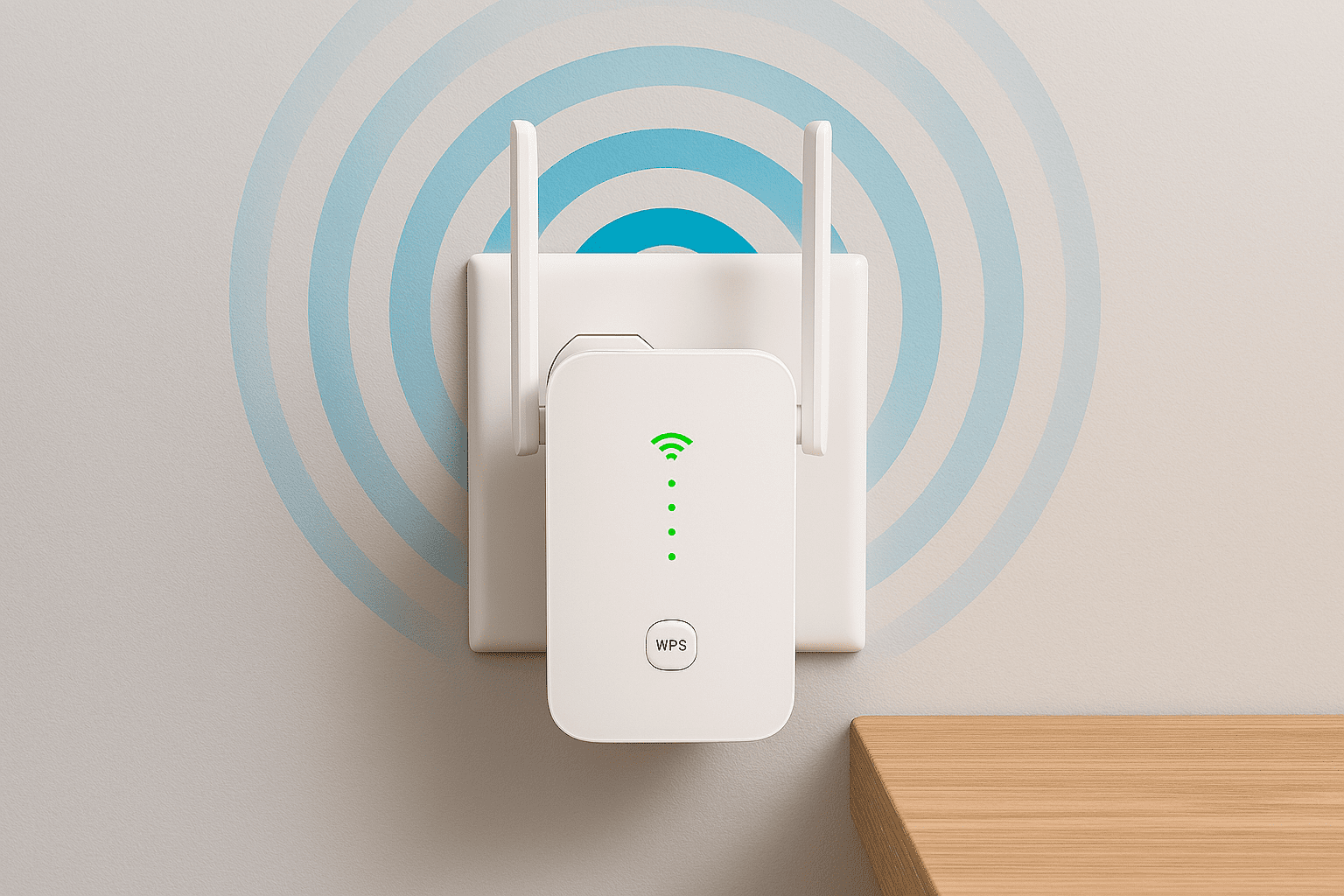
Best WiFi Extenders for Small Business — 2026 Guide
Disclosure: This article contains affiliate links. If you purchase through them, we receive a commission at no extra cost to you.
Table of Contents
Bad WiFi in a small business is rarely a bad internet connection. It’s usually a coverage problem — one room works fine, the back office barely loads email, and the payment terminal in the corner drops signal at the worst possible moment. Before you call your ISP — your internet provider, like Comcast, AT&T, or Spectrum — or buy a new router, the best WiFi extender for small business fixes this for under $30 in most cases.
Here’s what actually works, who each option is for, and the one thing most small businesses get wrong when setting them up.
Before you buy — read this first
A WiFi extender extends coverage — it does not increase your internet speed. Your actual speeds through the extender will be 40–60% of what you get connected directly to your router. That’s expected and normal for all extenders at any price point.
Run a speed test at your router first: go to speedtest.net on a device sitting next to the router. Not sure what speed you’re paying for? Check your ISP bill — the plan name usually includes the speed, like “200 Mbps” or “1 Gig.” If your speedtest.net result at the router is within 20% of that number, your connection is fine and an extender will solve the dead zone. If speeds are far below what you’re paying for even at the router, call your ISP — an extender won’t fix that.
At a glance
Best WiFi extenders for small business compared
| Extender | Price | Coverage | WiFi | Best for |
|---|---|---|---|---|
| TP-Link RE315 | ~$25 | Up to 1,500 sq ft | WiFi 5* | 1–2 dead zones, tight budget |
| TP-Link RE715X | ~$60 | Up to 2,400 sq ft | WiFi 6** | Multiple devices, larger space |
| TP-Link Deco (mesh) | ~$150+ | Whole property | WiFi 6** | Multiple floors, whole-building coverage |
*WiFi 5 = the previous standard, handles everyday tasks well. **WiFi 6 = the current standard — faster and better at handling many devices at once.
Budget pick — ~$25
TP-Link RE315 — Best WiFi extender for small business on a tight budget
What it does well
- ✓Covers up to 1,500 sq ft — enough for most small storefronts
- ✓Smart signal indicator tells you exactly where to place it
- ✓One Ethernet port for wired devices like POS terminals or security cameras that need the fastest, most stable connection
- ✓Works with any router — no brand matching required
- ✓Setup takes under 10 minutes via the TP-Link Tether app
- ✓2023 Engadget Best Budget Pick
Where it falls short
- ✗WiFi 5 only — not ideal if you have a WiFi 6 router
- ✗Struggles on upper floors — best for single-floor use
- ✗Speed drops 40–60% compared to direct router connection
- ✗Not suited for spaces over 1,500 sq ft
The feature that matters: Smart Signal Indicator
The biggest reason extenders fail isn’t the device — it’s placement. Most people plug them in too far from the router and wonder why signal is still weak. The RE315’s signal indicator light fixes this: red means too far from the router, orange means acceptable, green means optimal. Move it until the light turns green, and you’re done.
Setup path: Plug in near your router first → download the TP-Link Tether app (iOS or Android) → tap “+” → follow the setup steps → once connected, move the extender toward the dead zone outlet by outlet until the signal indicator shows green.
A restaurant where the kitchen loses signal at the worst moment, a salon where the back room barely loads the booking app, a retail shop where the payment terminal in the corner drops out — these are exactly the problems the RE315 was built for. For most small businesses with one or two weak areas, it solves the problem for $25 and half an hour of setup.
View the TP-Link RE315 on Amazon →Step-up pick — ~$60
TP-Link RE715X — Best for larger spaces and more devices
What it does well
- ✓WiFi 6 — faster and handles many devices simultaneously
- ✓Covers up to 2,400 sq ft — suitable for larger storefronts
- ✓Supports up to 64 devices simultaneously
- ✓Gigabit Ethernet port — wired connection for POS terminals or cameras needing the fastest speeds
- ✓PCMag Editor’s Choice — independently tested
Where it falls short
- ✗$60 vs $25 for the RE315 — overkill for a single dead zone
- ✗High latency — meaning noticeable delay in video calls or real-time payment processing — at longer distances
- ✗Still shows two network names unless paired with a TP-Link OneMesh router
If your business has 10+ devices connecting at once — employee phones, tablets, card readers, security cameras, and a POS — or your space runs bigger than 1,500 sq ft, the RE715X is worth the extra $35. The WiFi 6 standard handles congestion better, meaning fewer slowdowns when multiple people are connected at the same time.
When an extender isn’t enough
When you should skip extenders and go straight to a mesh system
A WiFi extender creates a second network name in your space. Walk from the dining room into the kitchen and your tablet might drop the stronger signal and cling to the weaker one — or stop connecting altogether until you manually switch networks. For a staff member doing that 30 times a day, it gets old fast.
For a shop with customers who walk in and out, that’s usually fine. For staff moving around all day, a mesh system — where every node shares the same network name and your device switches seamlessly without dropping — is the better call.
Skip the extender if any of these apply:
- →Your space is over 2,500 sq ft or spans multiple floors
- →Staff move around all day with tablets or handheld devices and need seamless roaming
- →You have more than two dead zones — at that point a mesh system is simpler to manage
- →Your router is more than four years old, or it’s the one your ISP gave you for free — a $80 TP-Link Archer router outperforms most ISP-provided hardware out of the box
For most small businesses that need a full mesh upgrade, the TP-Link Deco series starting at ~$150 for a 2-pack is the most straightforward option — same Tether app as the extenders, whole-property coverage, one network name throughout. It’s the upgrade that makes the extender question go away entirely.
Getting it right
Setting up your WiFi extender correctly — the mistake most small businesses make
I get called to fix extender installs more often than I get called to install them. Nine times out of ten, someone plugged it in right where the signal was weak — the back office, the far corner, the storage room. The extender is sitting there with one bar trying to rebroadcast nothing. Move it to the hallway halfway between the router and the problem room, the signal indicator turns green, and the problem is solved. The extender didn’t fail — the placement did.
For most small businesses, the best WiFi extender is the one placed correctly — and the TP-Link RE315 at $25 is the right starting point for almost every dead zone problem. If you have a larger space or more devices, the RE715X at $60 is worth the upgrade. Both extend coverage, not speed. Know what you’re buying, place it in the right spot, and it will work.
Once your network is stable, make sure it’s also secured. Here’s how to set up two-step verification on your Microsoft account — the fastest security upgrade you can make to protect everything running on your business network.