What Is Two-Factor Authentication for Small Business? (2026)
What Is Two-Factor Authentication for Small Business?
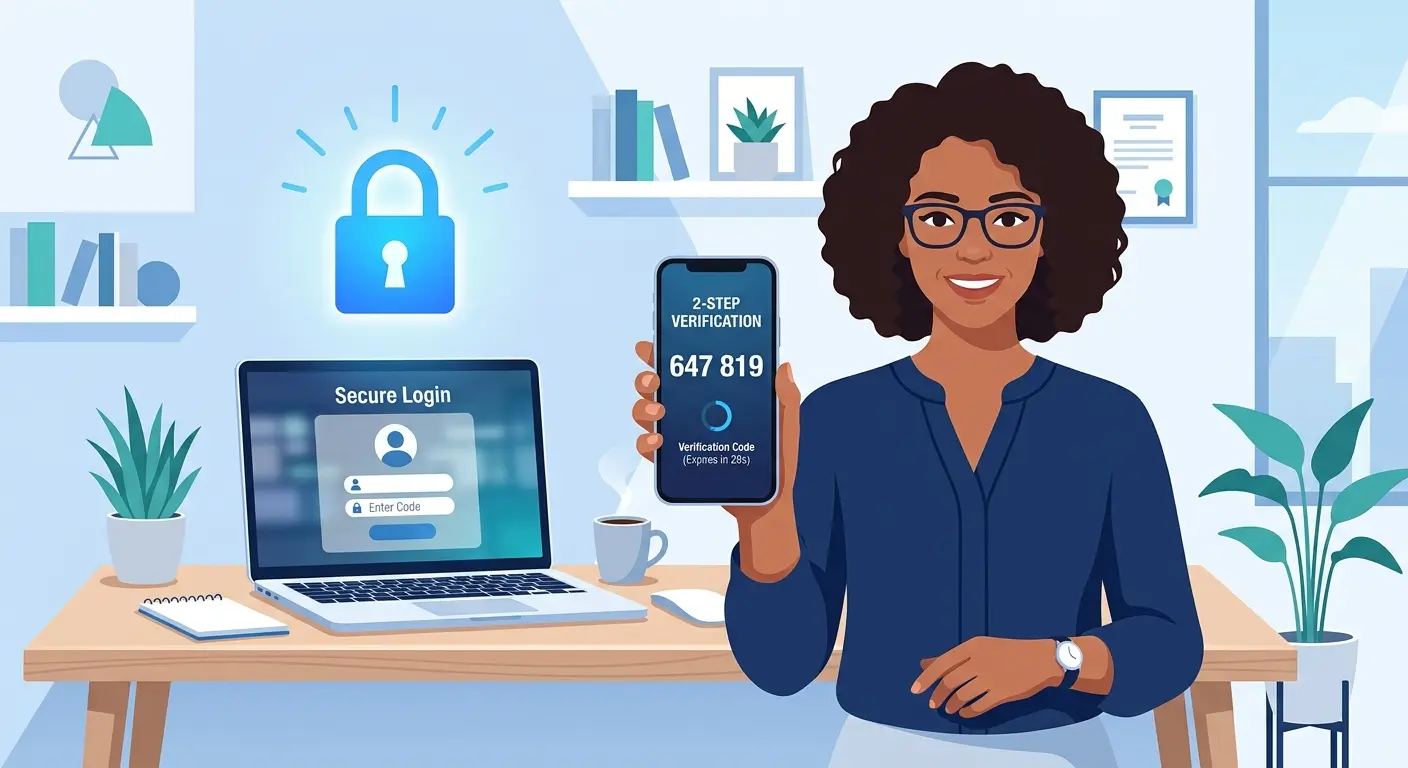
Two-factor authentication (2FA) is a login security method that requires two separate proofs of identity before granting access to an account. Your password is the first factor. The second is something only you physically have: a code sent to your phone, a fingerprint scan, or an app-generated number. For a small business, 2FA is the single fastest way to block unauthorized access even when a password gets stolen.
How Two-Factor Authentication Works for Small Business Accounts
A 6-digit code is texted to your phone after you enter your password. Most common, easiest to set up, but vulnerable to SIM-swap attacks.
An app like Google Authenticator or Microsoft Authenticator generates a new code every 30 seconds. More secure than SMS. Free to use.
You get an “Approve this login?” alert on your phone. One tap to confirm. Used by Microsoft 365 and Google Workspace.
A physical USB device (like a YubiKey) you plug in to authenticate. Strongest option. Overkill for most small businesses, but worth it for financial accounts.
Why Two-Factor Authentication Matters for Small Business Security
✓ What Works
- Blocks 99% of automated account-takeover attacks
- Free on Google, Microsoft 365, QuickBooks, and most POS systems
- Takes under 5 minutes to enable per account
- Works even if an employee reuses a weak password
✗ What to Watch
- Employees get locked out if they lose their phone and have no backup code
- SMS codes can be intercepted via SIM-swap fraud
- No recovery if backup codes are lost and phone is gone
- Some older POS and accounting platforms don’t support it yet
📋 How to Turn On 2FA in Google Workspace (takes 4 minutes)
Sign in to your Google Admin console at admin.google.com.
Go to Security → Authentication → 2-Step Verification.
Select Allow users to turn on 2-Step Verification, then set enforcement to On for your entire organization.
Set a grace period of 1 week so employees can enroll without getting locked out on day one.
When you enable 2FA, immediately generate backup codes for each account: in Google, go to myaccount.google.com → Security → 2-Step Verification → Backup codes → Generate. Print them and store them in a locked drawer, not a phone note. These are your only recovery option if an employee loses their phone.
Who Should Enable Two-Factor Authentication
Two-factor authentication for small business is not a technical upgrade — it is a 5-minute decision that eliminates the most common way businesses get hacked. Start with your email and banking accounts today, then work through the rest.
Want Full Protection Beyond Just Passwords?
2FA stops unauthorized logins. Malwarebytes stops the malware that steals passwords in the first place. Together, they cover the two most common attack vectors for small businesses.
Try Malwarebytes Free →