Is It Safe to Save Passwords in Chrome? A Network Engineer Answers
Should You Save Passwords in Google? A Network Engineer’s Honest Answer
Google Password Manager is free and built into Chrome. Whether it’s safe enough for your business comes down to one thing most owners haven’t checked.
If you’ve ever clicked “Save password” in Chrome and moved on with your day, you’re not alone. But whether you should save passwords in Google depends on how your Google account is protected — and most small business owners haven’t thought about that since they created the account. This article gives you a straight answer based on 10 years of setting up networks for restaurants, salons, and retail shops across Miami.
Short version: Google Password Manager is fine for personal use if your Google account is locked down. For a business where a single login controls your point-of-sale system, payroll, or bank account, it has real gaps you need to understand first.
What Google Password Manager actually does
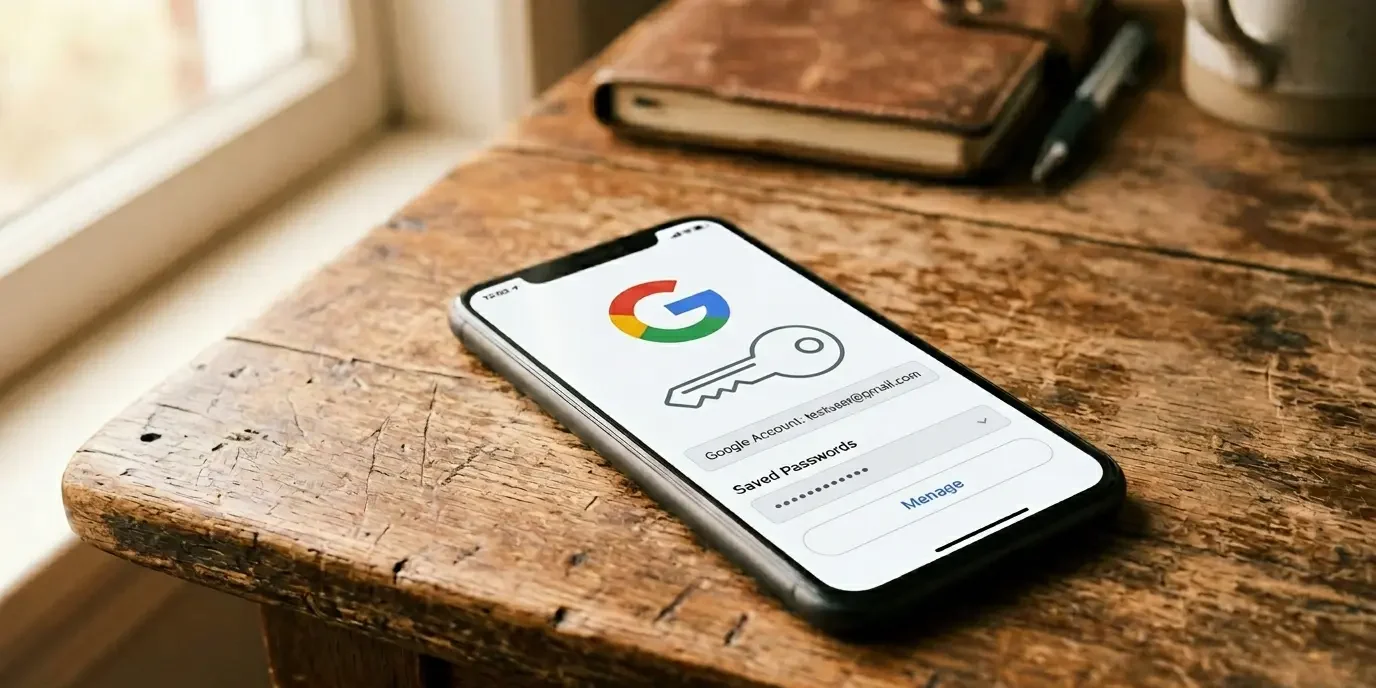
When you save a password in Chrome, it gets stored in your Google account and synced to every device signed into that account. Pull out your phone, visit the same site, and Chrome fills in the password automatically. You can view, edit, or delete everything saved at passwords.google.com.
That convenience is real. The problem is not what Google stores — it’s what happens when someone else gets into your Google account.
The real risk: it’s not Google getting hacked
Google’s servers are not your vulnerability. Their infrastructure is stronger than anything a small business could build independently. Your weak point is the Google account itself — the email and password someone uses to log into it.
If an attacker gets into your Google account, they get every saved password in one move. Every site, every login, handed over without needing to crack a single one individually.
The three most common ways this happens are not sophisticated attacks. They are phishing pages that look exactly like Google’s login screen, password reuse from a data breach at another site, and employees who stayed signed into a shared or former work computer.
“A restaurant in Doral called me after a former manager — who left on bad terms — changed the password on their Toast POS account from home. The owner’s Google account was still signed into a laptop the manager used. Toast credentials were saved in Chrome. No guessing required. The fix took two hours and cost them a full Saturday of service while we sorted out access.”
What Google Password Manager can and can’t do for a business
No staff sharing
There is no way to share one password with an employee without giving them access to your entire Google account. That is not a sharing feature — it’s a security problem.
Can’t revoke access
When someone leaves your business, you can’t remove them from passwords they saw in Chrome. You have to find and manually change every shared credential, one by one.
Tied to one Google account
If your Google account is compromised, all saved passwords go with it. One phishing click hands over your bank, POS, and payroll logins simultaneously.
Chrome-only autofill
Passwords saved in Chrome don’t autofill in Firefox, Safari, or desktop apps outside the browser. If staff use other browsers, they’re entering credentials manually.
Breach alerts included
Google’s Password Checkup scans saved passwords against known data breaches and flags weak or reused ones. Run it at passwords.google.com → Check passwords.
Syncs across your devices
Every device signed into your Google account gets the same passwords automatically — no exports or imports. Genuinely useful for a solo owner on multiple devices.
How to check if your Google account is locked down
Before you decide whether to keep using Google Password Manager, confirm these four settings. This takes about five minutes.
myaccount.google.com → Security → 2-Step Verification → Get started
myaccount.google.com → Security → Your devices → Manage all devices
myaccount.google.com → Security → Third-party apps with account access
Chrome → Profile icon (top right) → Add → Sign in with your work Google account
Google Password Manager vs. a dedicated password manager
| Feature | Google Password Manager | Bitwarden (free) | 1Password (~$3/mo) |
|---|---|---|---|
| Cost | Free | Free / $3/mo teams | ~$3/mo per user |
| Works outside Chrome | Chrome only | ✓ All browsers + apps | ✓ All browsers + apps |
| Share passwords with staff | ✗ Not possible | ✓ Shared vaults | ✓ Shared vaults |
| Revoke access when staff leaves | ✗ Manual only | ✓ Remove from vault | ✓ Remove from vault |
| Separate from Google account breach | ✗ Same account | ✓ Independent vault | ✓ Independent vault |
| Two-factor code storage | ✗ No | Premium only | ✓ Yes |
| Breach alerts | Basic | ✓ Detailed | ✓ Detailed |
| Independent security audit | ✗ Not published | ✓ Yes (2023) | ✓ Yes |
Pricing current as of April 2026. Verify on each vendor’s site before purchasing.
The biggest gap for any business with staff: Google has no way to share a password without sharing your entire account. Dedicated managers like Bitwarden let you create shared vaults. When someone leaves, remove them from the vault and rotate the affected passwords. That’s the entire offboarding process for credentials — it takes two minutes.
Pros and cons
What works
- Completely free with no subscription
- Built into Chrome — zero setup for most users
- Syncs instantly across all signed-in devices
- Password Checkup flags weak, reused, and breached passwords
- AES-256 encryption at rest — solid standard
- Passkey support built in for passwordless logins
What doesn’t
- Entirely tied to your Google account — one breach loses everything
- No staff sharing or shared vaults of any kind
- No way to cleanly revoke access when an employee leaves
- Chrome-only autofill — other browsers and desktop apps excluded
- No two-factor (2FA) code storage
- No independent security audit published
Is Google Password Manager right for your business?
Fine to use if…
- You are the only person using the device and the Google account
- 2-Step Verification is already turned on
- No employees share any of your business logins
- You’ve checked which devices are currently signed in
- Your most critical logins have their own 2FA on top of the password
Move to a dedicated manager if…
- Any employee needs access to a shared business login
- Staff turnover means regularly revoking credential access
- Firefox, Safari, or non-Chrome apps are part of your daily workflow
- Your Google account does not have 2-Step Verification enabled
- A shared or multi-user computer is part of your setup
- Enable 2-Step Verification today. Without it, a stolen password is all it takes. Go to myaccount.google.com → Security → 2-Step Verification and use an authenticator app — not just SMS.
- Remove old devices immediately. Go to myaccount.google.com → Security → Your devices and remove any computer or phone a former employee ever used.
- Run Password Checkup right now. Go to passwords.google.com → Check passwords. Change anything flagged as reused or compromised — start with your bank and POS logins.
- Use a unique password for your Google account itself. If that password was used on any other site that got breached, your entire saved list is exposed. Change it to something used nowhere else.
- Never save passwords on a shared computer without a dedicated Chrome profile set up for your use only.
- For any login shared with staff — POS, scheduling, payroll — move it to a dedicated manager with a shared vault instead of texting or emailing the password around.
- Revoke old third-party app access once a year. Go to myaccount.google.com → Security → Third-party apps with account access and remove anything you no longer use.
Bottom line: should you save passwords in Google?
For personal use with 2-Step Verification on and no shared devices — yes, it’s fine. Google’s infrastructure is solid and the convenience is real.
For a business with employees, shared logins, or staff turnover, Google Password Manager has one problem you can’t work around: no access control. You can’t share a password selectively, and you can’t revoke it without changing it manually across every system. That’s not a missing feature — it’s the wrong tool for the job.
The practical move: keep personal logins in Google, and shift business-critical accounts — bank, POS, payroll, email host — into a dedicated manager. Bitwarden has a completely free individual plan and takes about 20 minutes to set up from scratch. Their Teams plan runs $3 per user per month — less than an hour of cleanup after a credential incident.
The worst time to think about your password setup is after someone else already has access to it.