What Is Microsoft Entra PIM? A Plain-English Guide for Small Business
Disclosure: This article contains no affiliate links. It is purely informational.
If your business uses Microsoft 365 or Azure, someone has admin access to it. Maybe it’s your IT person. Maybe it’s you. Maybe it’s a previous employee whose account was never fully cleaned up. Whatever the situation, that admin access exists. If that account is ever compromised, everything in your Microsoft environment goes with it.
Microsoft Entra PIM is the tool Microsoft built to solve that problem. PIM stands for Privileged Identity Management. The idea is straightforward: instead of giving someone permanent admin access that’s always on, you give them the ability to turn it on temporarily when they actually need it.
The basics
What is Microsoft Entra PIM?
Microsoft Entra PIM (Privileged Identity Management) is a feature in Microsoft Entra ID (Microsoft’s identity and access platform, formerly known as Azure Active Directory) that controls who has admin access to your Microsoft environment and for how long.
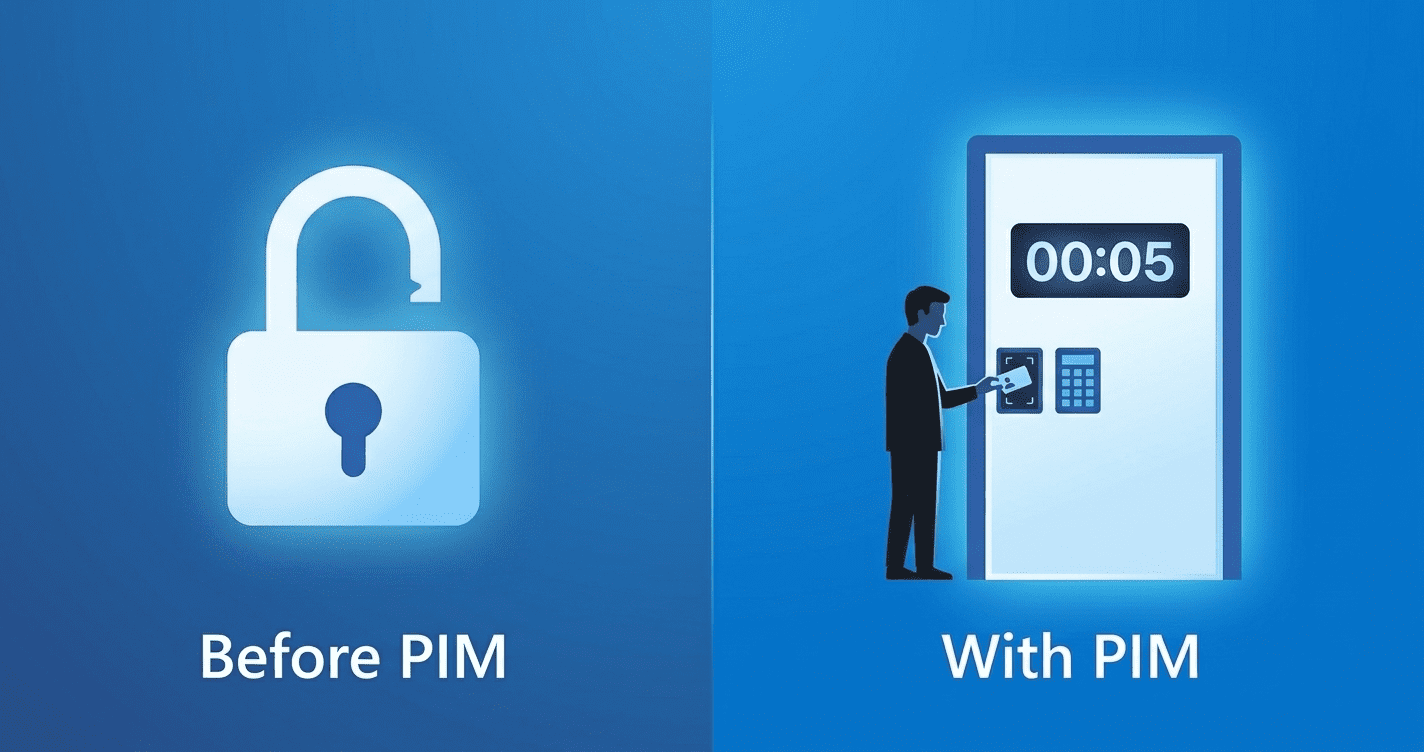
Without PIM, admin access works like a light switch that’s permanently on. The person has it, they keep it, and if their account is ever compromised or they leave the company without proper offboarding, that access stays active.
With PIM, admin access works more like a visitor badge. You have to sign in, state your reason, and return it when you’re done. The person is eligible for admin access, but to actually use it, they have to request it, verify who they are, and explain why they need it. The access is then active for a limited time and expires automatically.
Why it matters
The problem with permanent admin access
Most small businesses have at least one account with full admin access to their Microsoft 365 environment. That account can add users, reset passwords, access email, change security settings, and export company data. If that account is phished, if the password is reused somewhere that gets breached, or if the person who owns it leaves without proper offboarding, a bad actor has the keys to everything.
Real-world example: A small dental office uses Microsoft 365. Their IT contractor has Global Administrator access. The contractor switches firms, their old account isn’t properly removed, and the credentials end up in a data breach six months later. With always-on admin access still active, a bad actor now has full control of the practice’s Microsoft environment. Full Global Administrator access (the highest-privilege account in Microsoft 365, with full control over users, settings, data, and security) means the attacker can read every email in the organization, reset any user’s password including the owner’s, export all OneDrive files, and disable security features. In incidents like this, the attacker’s first move is typically to set up silent email forwarding rules so all incoming mail routes to an external address. The practice owner sees nothing unusual. PIM does not prevent every attack, but it closes this specific vector: a dormant admin account nobody remembered to revoke.
How it works
Eligible vs. active: the core concept
PIM introduces a distinction between two states for admin access:
Active assignment (before PIM)
The user has the admin role permanently. They can use it any time, from any device, without any additional verification. Most small businesses with Microsoft 365 have at least one permanently active Global Administrator account, often more than one, from contractors or previous IT setups that were never cleaned up.
Eligible assignment (with PIM)
The user can request admin access when they need it. They verify their identity, provide a reason, and get a time-limited window of access. When the time expires, the access turns off automatically.
What happens when someone activates access
When an eligible user needs admin access, they go through an activation process your organization controls. That process can include any combination of:
Every activation is logged. You can see who requested access, when, why, and how long they had it. That audit trail is useful for security reviews, compliance requirements, and understanding what happened if something goes wrong.
Scope
What Microsoft Entra PIM can protect
PIM is not limited to one part of the Microsoft ecosystem. It can manage access across:
For a small business using Microsoft 365, the most relevant protection is over Entra ID admin roles, specifically Global Administrator, which is the highest-privilege account in your Microsoft environment. If your business also uses Azure, PIM can extend that same model to cloud infrastructure.
Cost
What license do you need?
PIM is not included in standard Microsoft 365 Business Basic or Business Standard licenses. To use it, you need one of the following:
Practical note for small businesses: If you’re currently on Microsoft 365 Business Basic (~$6/user/month) or Business Standard (~$12.50/user/month), you do not have PIM. Microsoft 365 Business Premium (~$22/user/month) includes Entra ID P2 and is the most common path for small businesses that want PIM without a large enterprise license. You only need the P2 license for accounts that will be covered by PIM, not every user in the organization. For a business with 20 employees but only 3 admin accounts, you only need 3 P2 licenses at approximately $9 per user per month, not 20. That changes the cost calculation significantly.
Is it right for you?
What is Microsoft Entra PIM best suited for?
PIM is worth implementing if:
- →You have multiple admin accounts in Microsoft 365 or Azure and want tighter control over who can make changes
- →Your business uses IT contractors or MSPs (Managed Service Providers, external IT companies that manage your technology) who need periodic admin access but shouldn’t have it permanently
- →You have compliance requirements in healthcare, legal, finance, or any industry where access controls need to be auditable
- →You’ve had staff turnover and aren’t confident all admin accounts from previous employees are fully cleaned up
- →You’re already on Microsoft 365 Business Premium and want to get value from the security features you’re already paying for
PIM is probably not the priority if:
- →You have one or two people total with admin access, both of whom are current employees, and you don’t have compliance requirements
- →You’re on a basic Microsoft 365 license and upgrading to Business Premium isn’t in the budget right now. Set up MFA (multi-factor authentication) for all admin accounts first. It’s available on every Microsoft 365 plan. Once that’s in place, Conditional Access (a Microsoft security feature that controls when and how users can sign in, such as requiring MFA from outside the office network) is the next step. Here’s our guide to setting up two-step verification for your business.
Before you start
What to decide before turning PIM on
PIM deployed with default settings is better than no PIM, but it works best when you’ve thought through a few things first. Switching it on without a plan creates friction for your admins without necessarily improving security where it matters most.
Which roles stay permanent? Some accounts may need to stay permanently active. The most common example is a break-glass account: a permanently active admin account kept for emergencies, when normal access methods fail and you need guaranteed entry to your Microsoft environment. Decide which roles require permanent access before converting everything to eligible.
How long should activations last? An IT contractor doing a maintenance window might need 4 hours. A quick password reset might need 1 hour. Setting realistic durations reduces friction without leaving access open too long.
Who can approve access requests? For a small business, the business owner or a trusted manager is often the right approver. This does not need to be complicated. One approver with a backup is enough to start.
Do your admins know how to activate access? The first time someone needs admin access urgently and doesn’t know how PIM works, it creates real operational problems. Microsoft’s documentation at learn.microsoft.com includes a step-by-step PIM activation walkthrough. Send it to every admin before enabling PIM. Better yet, run a test activation with a test account so admins know exactly what the screen looks like before they need it under pressure.
Microsoft Entra PIM is one of the most effective security improvements available to small businesses on Microsoft 365, without requiring a technology overhaul. It is a way to stop treating admin access as something people have permanently and start treating it as something people use deliberately.
If your business already uses Microsoft 365 and you want to understand the full picture of what’s included in your plan, our guide to Office 365 web vs desktop apps covers what each license tier actually gives you.