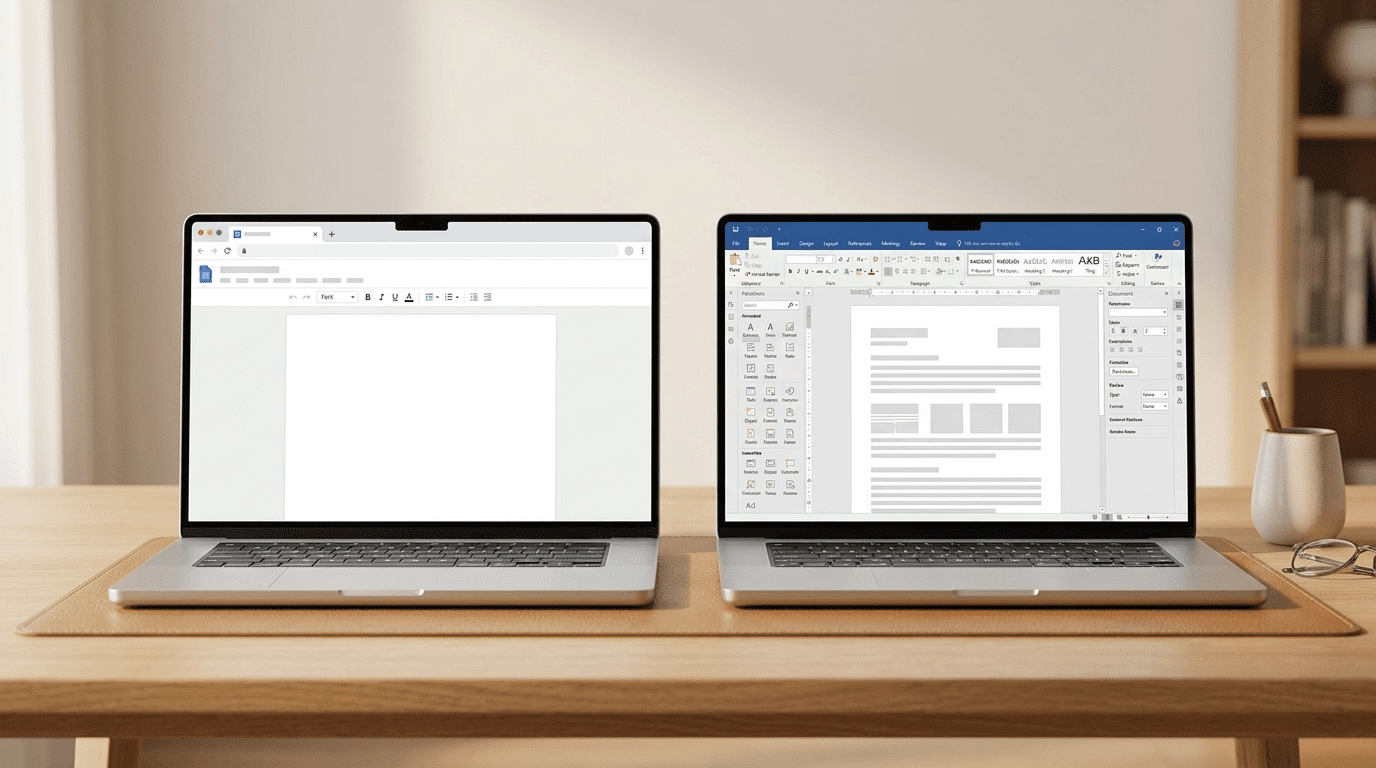
Office 365 Web vs Desktop Apps: Which Version Does Your Business Actually Need?
Disclosure: This article contains affiliate links. If you purchase through them, we receive a commission at no extra cost to you.
Table of Contents
Office 365 web vs desktop apps is one of those questions that sounds simple until you’re staring at an Excel spreadsheet that won’t run your macros, or an Outlook inbox that’s missing half the rules you set up. Microsoft 365, formerly called Office 365, comes in two versions, and they look almost identical. They are not.
It’s about where the work gets processed, and that determines what each version can actually do. Most users don’t notice any difference on simple tasks. The gap opens up the moment files get larger, workflows get more complex, or the internet becomes unreliable.
The fundamentals
The real difference between Microsoft 365 web vs desktop apps
The web apps run inside your browser. Word Online, Excel Online, Outlook Web: open a tab, log in, start working. Files are processed on Microsoft’s servers in the cloud, your browser is the interface, and everything saves automatically to OneDrive. The desktop apps run directly on your computer. Files are processed locally, saved to OneDrive in the background via the OneDrive app, and available whether or not you’re online.
Web apps
- ✓No installation, works in any browser
- ✓Always up to date automatically
- ✓Real-time collaboration with multiple editors simultaneously
- ✓Auto-save always on
- ✗Limited by browser memory and performance
- ✗Requires internet connection
- ✗Missing advanced features
Desktop apps
- ✓Full system resources with no browser limits
- ✓Works offline with local file caching
- ✓All advanced features unlocked
- ✓Handles large files and complex operations
- ✓Macros, automation, and add-ins
- ✗Requires installation and setup
- ✗Tied to the device it’s installed on
First step
How to check which version you’re using
Before deciding which version you need, confirm which one you’re currently running.
How to install the desktop apps if you need them
Go to microsoft365.com → click your account icon (top right) → My account → Apps & devices → Install Office. This is available on Microsoft 365 Business Basic and above. If you’re on a free Microsoft account, the desktop apps require a paid plan upgrade. Check your current plan at microsoft365.com/admin.
App by app
Excel: where the gap shows up fastest
Excel Online handles basic spreadsheets fine. The moment your work goes beyond basic data entry, the web version stops keeping up.
| Feature | Web | Desktop |
|---|---|---|
| Basic formulas | ✓ Supported | ✓ Full formula engine |
| Pivot tables | ✗ Not available | ✓ Full support |
| Macros (VBA) | ✗ Not supported | ✓ Full VBA support |
| Power Query / Power Pivot | ✗ Not available | ✓ Full support |
| Large datasets | Slower due to browser memory limits | Handles large files efficiently |
| Charts | Basic chart types only | Full chart library |
Bottom line for Excel: If Excel is part of your actual job, whether that’s reports, financial models, or data analysis, the web version won’t be enough. VBA macros (small programs that automate repetitive tasks in Excel), pivot tables (tools for summarizing and analyzing data without writing formulas), and Power Query and Power Pivot (Excel’s built-in tools for importing, cleaning, and analyzing large datasets from external sources) are all desktop-only features. If your team relies on any of those, the web version stops them cold.
App by app
Word: editing vs building documents
Word Online is genuinely good for quick edits, reviewing, and simple writing. Where it falls short is anything involving complex formatting, templates, or automation.
Word Online
- ✓Simple editing and review
- ✓Basic formatting
- ✓Real-time co-authoring
- ✗Limited layout and page control
- ✗No mail merge
- ✗No macros or automation
Word Desktop
- ✓Advanced formatting engine
- ✓Mail merge: automatically personalizes letters or emails for each person on a list
- ✓Templates and document automation
- ✓Full compatibility with complex documents
- ✓Precise page layout control
- ✓Add-ins: third-party tools that connect directly into Word, like contract signing or CRM integration
Word Online is fine for edits. Word Desktop is for building documents. If you’re creating contracts, proposals, branded templates, or anything with precise formatting requirements, the web version will frustrate you with what it can’t do.
App by app
Outlook: email management at scale
Outlook Web gives you full email access from any browser and works well for basic management. The desktop version becomes necessary the moment email volume increases or you need automation rules to stay organized.
Outlook Web
- ✓Full email access from any browser
- ✓Basic email rules (server-side only)
- ✓Calendar access
- ✗No client-side rules
- ✗Limited shared mailbox control
- ✗No add-ins or integrations
Outlook Desktop
- ✓Full rule engine: both server-side and client-side rules
- ✓Cached Exchange Mode: a local mailbox copy that works offline
- ✓Advanced calendar and shared mailbox management
- ✓Add-ins: third-party tools like CRM plugins or scheduling integrations
- ✓Works during internet outages via cached mailbox
The rule engine is where most high-volume Outlook users feel the difference. Server-side rules, the only kind available in Outlook Web, run on Microsoft’s servers and apply to email before it reaches your inbox, but they’re more limited in what conditions they can test. Client-side rules run locally on the desktop app and can handle far more complex logic.
If you manage three shared inboxes and receive 80 emails a day, the desktop rule engine is not a nice-to-have. It’s the difference between an organized inbox and two hours of manual sorting. Most Outlook Web users don’t realize client-side rules exist until they switch to desktop and see what they were missing.
The underrated advantage
Offline access: the feature most people ignore until they need it
The web apps stop working the moment your internet connection drops. The desktop apps keep going, but only if offline access is configured correctly. It doesn’t happen automatically.
Set this up before you need it
Outlook: go to File → Account Settings → Account Settings → double-click your account → check “Use Cached Exchange Mode.” This stores a local copy of your mailbox so Outlook keeps working if the internet goes down.
OneDrive files: right-click any folder in the OneDrive app → “Always keep on this device.” Without this, only recently opened files are cached. Files marked this way are available offline regardless of connection.
When offline access matters in practice
Internet goes down at the office. Web app users stop working. Desktop app users keep going.
Working on a flight or in a location with no Wi-Fi. Everything on the desktop apps is available. The web apps are not.
Opening a large Excel file. Desktop loads it using your computer’s full memory. The web version struggles or times out.
Checking email during an outage. Outlook desktop runs off its cached mailbox copy. Outlook Web shows nothing.
This is why most businesses that depend on Microsoft 365 still pay for the desktop apps even when the web versions are included in their subscription. The web apps are a convenience. The desktop apps are the safety net.
The decision
Office 365 web vs desktop: which version does your business need?
Web apps are enough if…
- →Your work is mostly light editing, reviewing, and sharing documents
- →You collaborate with others on the same files simultaneously
- →You work across multiple devices and need access from anywhere
- →Your Excel use stays at basic formulas and simple charts
- →You have reliable internet access and don’t need offline capability
Desktop apps are necessary if…
- →Excel is a core business tool: pivot tables, macros, Power Query, or large datasets
- →You manage high email volume and rely on automation rules in Outlook
- →You build complex Word documents: contracts, proposals, templated reports
- →You need offline access for travel, unreliable internet, or outage protection
- →You work with large files the browser can’t handle efficiently
- →You use third-party add-ins or integrations with other business software
Web apps are fast, accessible, and built for collaboration. Desktop apps are what your business needs when the work gets serious: larger files, complex automation, or any situation where the internet can’t be guaranteed.
If you’ve decided you need the desktop apps and are evaluating what AI features like Copilot add on top of them, here’s our breakdown of whether Microsoft 365 Copilot is worth the extra cost for small business.
And if you’re still deciding whether Microsoft 365’s cloud storage is the right fit compared to Google Drive or Dropbox, here’s our cloud storage comparison for small business.